Module 01: Installation on different platforms
There are five ways to get llama.cpp: the llama.app installer, a package manager, the prebuilt
binaries from the release page, Docker, and building from source. All of them give you the same commands (llama cli,
llama serve, …). This module helps you pick the right one for your machine, understand which
backend (CPU, CUDA, Metal, Vulkan, …) you are using, and check it.
What you will learn
- Choose the installation method based on operating system and GPU.
- Use the installer
curl -LsSf https://llama.app/install.sh | shand fix the TLS certificate problem. - Read release asset names (
llama-bNNNNN-bin-<os>-<backend>-<arch>) and pick the right one. - Run
llama-cliandllama-serverfrom the official Docker images, with and without a GPU. - Build with CMake and the flags for each backend; build on Raspberry Pi and Android.
- Check the version and detected devices, update, and pin a version.
1. Which method for which machine
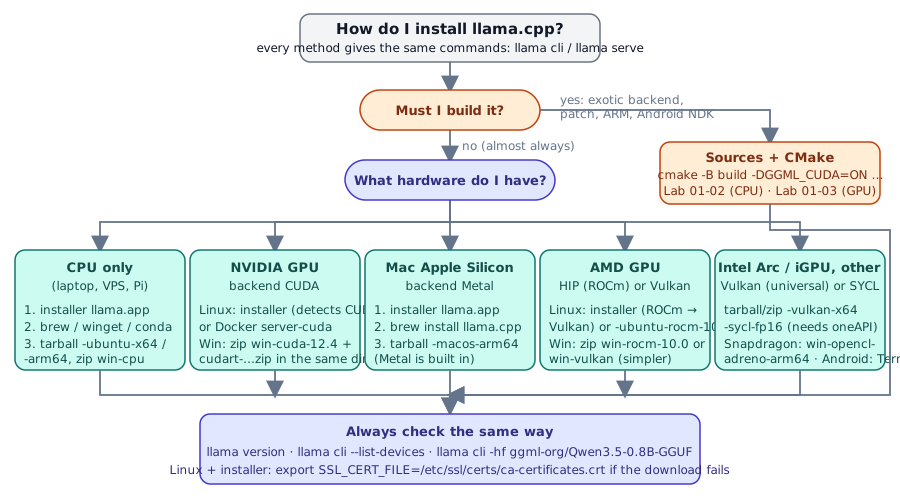
| Platform | llama.app installer | Package manager | Release binaries | Docker | Source | Available GPU backends |
|---|---|---|---|---|---|---|
| Linux x86_64 | ✅ (CUDA → ROCm → Vulkan → CPU) | brew, conda, nix | CPU, Vulkan, ROCm, SYCL, OpenVINO (no CUDA) | ✅ CPU, cuda, rocm, vulkan, intel, musa | ✅ | CUDA, HIP, Vulkan, SYCL |
| Linux ARM64 (Raspberry Pi, ARM servers) | ✅ | brew, conda, nix | CPU, Vulkan | ✅ arm64 CPU, cuda, vulkan | ✅ | Vulkan |
| macOS Apple Silicon | ✅ (Metal) | brew, port, conda, nix | macos-arm64 (Metal included) |
— (no GPU in containers) | ✅ | Metal (default) |
| macOS Intel | ✅ | brew, port, nix | macos-x64 |
— | ✅ | CPU |
| Windows x64 | winget (the script is for sh) | winget, conda | CPU, CUDA 12.4/13.3, Vulkan, ROCm, SYCL, OpenVINO | via WSL2 | ✅ VS 2022 | CUDA, Vulkan, HIP, SYCL |
| Windows ARM64 (Snapdragon X) | — | — | CPU arm64, CUDA 13.4 arm64, opencl-adreno-arm64 |
— | ✅ arm64 preset | OpenCL (Adreno) |
| Android | — (Termux: build it) | — | android-arm64.tar.gz |
— | ✅ Termux or NDK | OpenCL (Adreno), Vulkan |
In one sentence
Laptop or server without a GPU, Mac, Linux with NVIDIA: installer. Windows: winget or the release zip. Server or CI: Docker. Exotic backends, patches, Android NDK: build it.
2. Quick path: the llama.app installer
What the script does: it detects uname -s / uname -m, asks the
huggingface.co/buckets/ggml-org bucket for the latest version, then on Linux it tries CUDA → ROCm → Vulkan →
CPU in order, downloading a small "probe" executable for each; on macOS it takes the Metal binary directly.
The binary lands in ~/.llama-app/llama and is copied to ~/.local/bin/llama. You do not need root.
flowchart TB
    S[install.sh] --> V["version: latest<br/>or LLAMA_VERSION=bNNNNN"]
    V --> C{CUDA probe?}
    C -- ok --> BC[llama CUDA]
    C -- no --> R{ROCm probe?}
    R -- ok --> BR[llama ROCm]
    R -- no --> K{Vulkan probe?}
    K -- ok --> BK[llama Vulkan]
    K -- no --> BP[llama CPU]
    BC & BR & BK & BP --> I["~/.llama-app/llama<br/>→ ~/.local/bin/llama"]
Useful environment variables: LLAMA_VERSION=b11046 pins a build (only those present in the bucket),
SKIP_CUDA=1, SKIP_ROCM=1, SKIP_VULKAN=1 skip a probe (useful when a broken driver makes detection
fail), SKIP_INSTALL=1 downloads into ~/.llama-app without copying to ~/.local/bin, HF_TOKEN lets you
go through the Hugging Face proxy authenticated. On a Linux machine without a GPU (Ubuntu 24.04):
$ llama version
version: 0.4.1-dev (build 11046, commit 60081bb2b)
built with Clang 22.1.8 for Linux x86_64
$ llama cli --list-devices
Available devices:
  (none)
"(none)" is correct: the CPU is not listed among the offload devices.
On Ubuntu 24.04: SSL connection failed
The installer binary is static (built with Clang 22) and does not know where your distribution keeps
its TLS certificates. The first llama cli -hf … can fail with
E get_repo_commit: error: HTTPLIB failed: SSL connection failed. Fix:
The installer binary contains the main subcommands (llama help all): serve, cli, update,
download, completion, bench, batched-bench, fit-params, quantize, perplexity, version,
licenses. It does not contain imatrix, gguf-split, tokenize, tts, mtmd-cli, rpc-server: for
those you need the release tarball or a build from source (sections 4 and 6).
3. Package managers
| System | Command | Notes |
|---|---|---|
| Windows | winget install llama.cpp |
updated automatically with every release |
| macOS / Linux | brew install llama.cpp |
formula updated with every release; includes Metal on Mac |
| macOS | sudo port install llama.cpp |
MacPorts |
| Windows / macOS / Linux | conda install -c conda-forge llama.cpp |
CUDA (Win/Linux), Vulkan (Win/Linux), Metal (macOS) variants; also mamba and pixi global install llama.cpp |
| macOS / Linux (Nix) | nix profile install nixpkgs#llama-cpp |
or nix-env --file '<nixpkgs>' --install --attr llama-cpp |
Packages follow the vX.Y.Z releases, so they can be a few days behind the nightly
builds. They are the right choice when you want llama.cpp to update together with the rest of the system.
4. Prebuilt binaries from the release page
Every bNNNNN build on https://github.com/ggml-org/llama.cpp/releases has one archive per
system × backend × architecture combination. The real names (build b10964, same scheme for the others):
| Asset | Backend | Size | Notes |
|---|---|---|---|
llama-bNNNNN-bin-ubuntu-x64.tar.gz |
CPU | 16 MB | libggml-cpu-<arch>.so from sandybridge to zen4/sapphirerapids, chosen at runtime |
-ubuntu-arm64.tar.gz |
CPU | Raspberry Pi 4/5, ARM servers | |
-ubuntu-vulkan-x64.tar.gz / -vulkan-arm64 |
Vulkan | 28 MB | any GPU with a Vulkan driver |
-ubuntu-rocm-10.0-x64.tar.gz |
HIP | 217 MB | requires ROCm 10 installed |
-ubuntu-sycl-fp16-x64.tar.gz |
SYCL | requires oneAPI of the same version | |
-ubuntu-openvino-2026.3.1-x64.tar.gz |
OpenVINO | Intel CPU/GPU/NPU | |
-ubuntu-s390x.tar.gz |
CPU | IBM Z | |
-macos-arm64.tar.gz |
Metal | 10 MB | Apple Silicon |
-macos-x64.tar.gz |
CPU | Intel Mac | |
-win-cpu-x64.zip / -win-cpu-arm64.zip |
CPU | 17 MB | |
-win-cuda-12.4-x64.zip + cudart-llama-bin-win-cuda-12.4-x64.zip |
CUDA | 242 + 373 MB | the second one contains the CUDA runtime DLLs: extract it into the same folder |
-win-cuda-13.3-x64.zip / -win-cuda-13.4-arm64.zip |
CUDA | same, with its own cudart-… |
|
-win-vulkan-x64.zip |
Vulkan | 30 MB | the simplest path for AMD/Intel on Windows |
-win-rocm-10.0-x64.zip / -win-sycl-x64.zip / -win-openvino-2026.3.1-x64.zip |
HIP / SYCL / OpenVINO | ||
-win-opencl-adreno-arm64.zip |
OpenCL | Snapdragon X | |
-android-arm64.tar.gz |
CPU | 67 MB | for use in Termux or via adb |
-xcframework.zip |
library for iOS/macOS (Xcode) | ||
-ui.tar.gz |
the server web UI, already inside llama-server |
No CUDA for Linux in the releases
On Linux with an NVIDIA GPU there is no CUDA tarball: use the installer (which detects it), Docker
server-cuda, conda-forge, or build it. The Windows CUDA build exists, but remember the second cudart zip.
The Ubuntu tarball (61 files, 41 MB extracted) contains both llama and the old executables
llama-cli, llama-server, llama-bench, llama-quantize, llama-perplexity, llama-imatrix,
llama-gguf-split, llama-tokenize, llama-tts, llama-mtmd-cli, ggml-rpc-server, plus the libraries
libllama.so, libggml*.so, libmtmd.so. The binaries are built on Ubuntu 22.04 with GCC 11 and use the
system libraries (OpenSSL): they work on Ubuntu 22.04+ and equivalent distributions.
$ ~/llama-lab/rel/llama-b11046/llama-cli --version
version: 0.4.1-dev (build 11046, commit 60081bb2b)
built with GNU 11.4.0 for Linux x86_64
5. Docker
Official images at ghcr.io/ggml-org/llama.cpp: + variant + optional backend suffix:
| Variant | Contains | Platforms |
|---|---|---|
full |
llama-cli, llama-completion, all the tools and the Python conversion scripts (convert_hf_to_gguf.py) |
amd64, arm64, s390x |
light |
only llama-cli and llama-completion |
amd64, arm64, s390x |
server |
only llama-server (with web UI) |
amd64, arm64, s390x |
Suffixes: -cuda (CUDA 12), -cuda13, -rocm, -musa, -intel (SYCL), -vulkan, -openvino, -s390x.
Example: ghcr.io/ggml-org/llama.cpp:server-cuda. The images follow the nightly builds (the tag without a
number is the latest: for example light → build 11096).
# Interactive CLI (default entrypoint: /app/llama-cli)
docker run -it --rm -v /percorso/modelli:/models ghcr.io/ggml-org/llama.cpp:light -m /models/modello.gguf

# Server: -p publishes the port, --host 0.0.0.0 is required inside the container
docker run --rm -v /percorso/modelli:/models -p 8080:8080 ghcr.io/ggml-org/llama.cpp:server \
    -m /models/modello.gguf --host 0.0.0.0 --port 8080 -c 4096

# NVIDIA GPU (requires nvidia-container-toolkit on the host)
docker run --gpus all --rm -v /percorso/modelli:/models -p 8080:8080 ghcr.io/ggml-org/llama.cpp:server-cuda \
    -m /models/modello.gguf --host 0.0.0.0 --port 8080 -ngl 99

# AMD / Intel GPU: pass the DRM devices instead of --gpus
docker run --rm --device /dev/dri/renderD128:/dev/dri/renderD128 --device /dev/dri/card0:/dev/dri/card0 \
    -v /percorso/modelli:/models -p 8080:8080 ghcr.io/ggml-org/llama.cpp:server-vulkan \
    -m /models/modello.gguf --host 0.0.0.0 --port 8080 -ngl 99
Container log with the model from the mounted Hugging Face cache:
srv    load_model: loading model '/models/37ae482d…814f'
srv    load_model: initializing, n_slots = 4, n_ctx_slot = 2048, kv_unified = 'true'
srv  llama_server: listening on http://0.0.0.0:18101
$ curl -s http://127.0.0.1:18101/health
{"status":"ok"}
The Hugging Face cache is made of symbolic links
~/.cache/huggingface/hub/<repo>/snapshots/<hash>/modello.gguf is a link to ../../blobs/<sha256>.
If you mount only snapshots/, the link inside the container points to nothing. Mount the blobs/ folder (and
pass -m /models/<sha256>), or mount all of ~/.cache/huggingface, or copy the file.
Every flag has an LLAMA_ARG_* environment variable (you see them in --help), handy in Compose:
services:
  llama:
    image: ghcr.io/ggml-org/llama.cpp:server
    ports: ["8080:8080"]
    volumes: ["./models:/models"]
    environment:
      LLAMA_ARG_HOST: 0.0.0.0
      LLAMA_ARG_PORT: 8080
      LLAMA_ARG_MODEL: /models/modello.gguf
      LLAMA_ARG_CTX_SIZE: 4096
      LLAMA_ARG_N_PARALLEL: 2
To build an image with a different CUDA: docker build -t local/llama.cpp:server-cuda --target server
-f .devops/cuda.Dockerfile . from source (CUDA_VERSION defaults to 12.8.1). The project CI builds the
GPU images but does not run them: for details see docs/docker.md.
6. Building from source with CMake
You need it when you want a backend that is not distributed (CANN, WebGPU, ZenDNN, KleidiAI…), when you must apply a
patch or follow master, or on platforms without binaries (Termux, RISC-V). On a modern computer the CPU build
takes 5-15 minutes.
sudo apt install build-essential cmake git ninja-build ccache libssl-dev   # Debian/Ubuntu
# Fedora: sudo dnf install gcc-c++ cmake git ninja-build ccache openssl-devel
git clone https://github.com/ggml-org/llama.cpp && cd llama.cpp
git checkout b11046                                # (1)!
cmake -B build -G Ninja                            # (2)!
cmake --build build --config Release -j 8
./build/bin/llama version
- Pins the course build; without
checkoutyou buildmaster(the current nightly build). - Ninja parallelizes on its own; ccache is detected automatically if installed.
Install Visual Studio 2022 Community with the Desktop development with C++ workload (it brings along CMake, Git, the Clang compiler, and MSBuild for LLVM). Open a Developer PowerShell for VS 2022:
git clone https://github.com/ggml-org/llama.cpp; cd llama.cpp
cmake -B build
cmake --build build --config Release -j 8
.\build\bin\Release\llama.exe version
cmake --preset arm64-windows-llvm-release -D GGML_OPENMP_FETCH=ON then
cmake --build build-arm64-windows-llvm-release (from the ARM64 Native Tools Command Prompt).
The binaries land in build/bin/ (on Windows with multi-config generators: build/bin/Release/). General
options: -DBUILD_SHARED_LIBS=OFF for static executables, -DCMAKE_BUILD_TYPE=Debug for debugging,
-DLLAMA_CURL=ON is the default (-hf downloads; you need libcurl4-openssl-dev on Debian/Ubuntu if it is missing),
-DGGML_NATIVE=OFF for a binary that is portable to other CPUs.
Flags per backend
| Backend | Hardware | CMake flag | Prerequisites |
|---|---|---|---|
| CPU | all | (none) | C++17 compiler |
| BLAS | CPU | -DGGML_BLAS=ON -DGGML_BLAS_VENDOR=OpenBLAS |
OpenBLAS; speeds up only the prompt with batch > 32 |
| Metal | Apple Silicon | ON by default on macOS (-DGGML_METAL=OFF to turn it off) |
Xcode CLT |
| CUDA | NVIDIA | -DGGML_CUDA=ON (+ -DCMAKE_CUDA_ARCHITECTURES="86;89" to choose the GPUs, -DGGML_NATIVE=OFF for all of them) |
CUDA Toolkit |
| HIP | AMD | -DGGML_HIP=ON -DGPU_TARGETS=gfx1100 with HIPCXX="$(hipconfig -l)/clang" HIP_PATH="$(hipconfig -R)" |
ROCm; rocminfo \| grep gfx for the target |
| Vulkan | any GPU | -DGGML_VULKAN=ON |
Linux: libvulkan-dev glslc spirv-headers; Windows: LunarG Vulkan SDK; check with vulkaninfo |
| SYCL | Intel Arc / iGPU | -DGGML_SYCL=ON -DCMAKE_C_COMPILER=icx -DCMAKE_CXX_COMPILER=icpx after source /opt/intel/oneapi/setvars.sh |
oneAPI Base Toolkit |
| OpenCL | Adreno (Snapdragon) | -DGGML_OPENCL=ON |
OpenCL headers + ICD loader |
| MUSA | Moore Threads | -DGGML_MUSA=ON |
MUSA SDK |
| CANN | Ascend NPU | -DGGML_CANN=on |
CANN toolkit |
| WebGPU | all (Dawn) | -DGGML_WEBGPU=ON |
Dawn |
| ZenDNN | AMD EPYC | -DGGML_ZENDNN=ON |
downloads and builds ZenDNN on the first build |
| KleidiAI | ARM64 | -DGGML_CPU_KLEIDIAI=ON |
arm64 only |
| RPC | network | -DGGML_RPC=ON |
module 05 |
You can combine several backends in one binary (-DGGML_CUDA=ON -DGGML_VULKAN=ON) and choose at runtime
with --device; with -DGGML_BACKEND_DL=ON the backends become dynamically loaded libraries, the same
mechanism as the libggml-cpu-*.so in the tarball. Even with -ngl 0 the GPU can be used for some
operations: to turn it off completely, use --device none.
7. GPU backends: what to expect
- CUDA (NVIDIA): the most mature and fastest backend. With
-ngl 99(orauto) the whole model goes into VRAM. Runtime variables:CUDA_VISIBLE_DEVICES,GGML_CUDA_ENABLE_UNIFIED_MEMORY=1(uses RAM when VRAM runs out, instead of crashing). In the log, look forggml_cuda_init: found 1 CUDA devicesandload_tensors: CUDA0 model buffer size. - Metal (Apple): unified memory, so no CPU↔GPU copy; a Mac with 32 GB runs models of
~24 GB.
-ngl 0disables the GPU. Log:ggml_metal_init. - HIP (AMD, Linux and Windows): the same code as CUDA, translated. If the GPU is not officially supported:
HSA_OVERRIDE_GFX_VERSION=11.0.0(RDNA3) or10.3.0(RDNA2), Linux only. - Vulkan: works on NVIDIA, AMD, Intel, iGPUs, Raspberry Pi 5, and Android; a bit slower than CUDA/HIP but
without proprietary SDKs. Log:
ggml_vulkan: Found 1 Vulkan devicesfollowed by the device name. - SYCL (Intel Arc, 11th gen+ iGPUs): requires oneAPI of the same version the binary was built
with;
ONEAPI_DEVICE_SELECTOR="level_zero:0"to choose the device. - OpenCL (Adreno 750/830/X1-85…): for Snapdragon 8 Gen 3 / 8 Elite / X Elite; supported quantizations Q4_0, Q4_K, Q6_K, Q8_0.
8. Edge platforms: Raspberry Pi, ARM64, Android
Raspberry Pi 4/5 and ARM64 servers (64-bit Ubuntu/Raspberry Pi OS): the installer works (uname -m =
aarch64 → CPU or Vulkan binary), the tarball is -ubuntu-arm64.tar.gz, the arm64 Docker image is the
same ghcr.io/ggml-org/llama.cpp:server. When you build, cmake -B build detects NEON and dotprod on its own;
-DGGML_CPU_KLEIDIAI=ON adds the Arm micro-kernels. On the Pi 5 (8 GB), with a 1-2B model in Q4_0
(the fastest format on ARM), expect token generation on the order of a few tokens per second.
Android with Termux (no root): Termux is a terminal emulator with a Linux environment. Get it from F-Droid or GitHub (the Play Store version is experimental):
apt update && apt upgrade -y
apt install git cmake clang libandroid-spawn
git clone https://github.com/ggml-org/llama.cpp && cd llama.cpp
cmake -B build && cmake --build build --config Release -j 4
curl -L "https://huggingface.co/ggml-org/Qwen3.5-0.8B-GGUF/resolve/main/Qwen3.5-0.8B-Q8_0.gguf" -o ~/qwen.gguf
./build/bin/llama-cli -m ~/qwen.gguf -c 4096 -p "ciao"
Put the model in ~/ (not on /sdcard, which is slower) and always set -c (4096 is fine): without it,
the model's context (262k for Qwen3.5) would blow up memory and Android would kill Termux. As an
alternative to building, you can extract llama-bNNNNN-bin-android-arm64.tar.gz.
Android with the NDK (cross-compiling from the PC, then adb):
export ANDROID_NDK=/percorso/ndk
cmake -DCMAKE_TOOLCHAIN_FILE=$ANDROID_NDK/build/cmake/android.toolchain.cmake \
      -DANDROID_ABI=arm64-v8a -DANDROID_PLATFORM=android-28 \
      -DGGML_NATIVE=OFF -DGGML_OPENMP=OFF -DGGML_LLAMAFILE=OFF -DLLAMA_OPENSSL=OFF \
      -B build-android                                                        # (1)!
cmake --build build-android --config Release -j 8
cmake --install build-android --prefix install-android --config Release
adb shell "mkdir /data/local/tmp/llama.cpp"
adb push install-android /data/local/tmp/llama.cpp/
adb push modello.gguf /data/local/tmp/llama.cpp/
adb shell
cd /data/local/tmp/llama.cpp && LD_LIBRARY_PATH=lib ./bin/llama-simple -m modello.gguf -c 4096 -p "ciao"  # (2)!
GGML_NATIVE=OFFbecause the host CPU is not the phone's CPU;GGML_OPENMP=OFFandLLAMA_OPENSSL=OFFbecause OpenMP and OpenSSL are not part of the NDK's stable native APIs;GGML_LLAMAFILE=OFFbecause llamafile does not support Android. Add-DGGML_CPU_KLEIDIAI=ONfor the Arm kernels.- Android does not look for libraries in
lib/on its own: you needLD_LIBRARY_PATH.
For the Adreno GPU, add -DGGML_OPENCL=ON -DBUILD_SHARED_LIBS=OFF after installing the OpenCL headers and
ICD loader in the NDK sysroot (procedure in docs/backend/OPENCL.md). There is also an Android Studio binding
in examples/llama.android.
9. Checking the installation
Whatever method you chose, three commands:
llama version                    # version, build, compiler, platform
llama cli --list-devices         # offload devices: (none) on CPU only, otherwise CUDA0 / Vulkan0 / Metal…
llama cli -hf ggml-org/Qwen3.5-0.8B-GGUF -st -p "Rispondi con una parola: capitale d'Italia?" -n 20 -rea off
The third one downloads 785 MiB into the Hugging Face cache, prints the banner (build, model, ftype Q8_0,
modalities text), answers, and exits (-st = single turn, -rea off turns off "thinking"). On a GPU add
-ngl 99 and look in the log for the model buffer size line with the name of your backend. With the old names:
llama-cli --version, llama-cli -hf ….
10. Updating and pinning a version
| Method | Update | Pin |
|---|---|---|
| Installer | llama update (latest release) or rerun install.sh |
LLAMA_VERSION=bNNNNN curl -LsSf https://llama.app/install.sh \| sh |
| winget / brew / port / conda / nix | winget upgrade llama.cpp, brew upgrade llama.cpp, … |
package manager pin (brew pin llama.cpp) |
| Tarball / zip | download the new build into a new folder | keep the llama-bNNNNN/ folders side by side |
| Docker | docker pull |
use the tag with the build number (server-b11046) instead of latest |
| Source | git pull && cmake --build build |
git checkout bNNNNN (builds are tags) or git checkout v0.4.1 |
Pinning the version is what the course does: all commands refer to the build in Reference version; if you update and something changes, look there first.
Summary
| What | Command / name |
|---|---|
| Installer (Linux, macOS) | curl -LsSf https://llama.app/install.sh \| sh → ~/.local/bin/llama |
| Certificates (Linux + installer) | export SSL_CERT_FILE=/etc/ssl/certs/ca-certificates.crt |
| Windows | winget install llama.cpp or llama-bNNNNN-bin-win-<backend>-x64.zip (+ cudart-… for CUDA) |
| Tarball with all the tools | llama-bNNNNN-bin-ubuntu-x64.tar.gz (16 MB) |
| Docker | ghcr.io/ggml-org/llama.cpp:{full,light,server}[-cuda\|-rocm\|-vulkan\|-intel\|-musa] |
| Build | cmake -B build [-DGGML_CUDA=ON \| -DGGML_VULKAN=ON \| -DGGML_HIP=ON \| -DGGML_SYCL=ON] + cmake --build build --config Release -j 8 |
| Android | Termux: apt install git cmake clang libandroid-spawn + normal build; NDK: toolchain + GGML_NATIVE=OFF |
| Check | llama version, llama cli --list-devices, llama cli -hf … -st -p … -n 20 |
Common mistakes
llama: command not found right after the installer
~/.local/bin is not in the current shell's PATH: run export PATH="$HOME/.local/bin:$PATH" and add it
to ~/.bashrc or ~/.zshrc.
SSL connection failed on the first -hf
See section 2: SSL_CERT_FILE. It is not a network or Hugging Face problem.
Windows CUDA: cudart64_12.dll not found
You extracted only llama-bNNNNN-bin-win-cuda-12.4-x64.zip. You also need
cudart-llama-bin-win-cuda-12.4-x64.zip in the same folder (or the CUDA Toolkit installed).
Docker: failed to open GGUF file with the Hugging Face cache mounted
You mounted snapshots/: the file is a symbolic link to blobs/. Mount blobs/ or the whole cache.
Docker server unreachable from the host
--host 0.0.0.0 is missing: inside the container the default 127.0.0.1 is not published by -p.
The installer binary does not have llama imatrix / gguf-split / tokenize
They are in the release tarball and in the source. Keep them side by side: same build, no conflict.
CUDA build: nvcc warning: Cannot find valid GPU for '-arch=native'
CMake does not see the GPU: pass -DCMAKE_CUDA_ARCHITECTURES="86" (your card's compute capability)
or -DGGML_NATIVE=OFF to build for all of them (large binary, long build).
Labs in this module
- Lab 01-01: Installation from binaries/packages: installer or package manager on your platform, tarball with all the tools, version and device check.
- Lab 01-02: Building from source (CPU): clone, checkout of the course build, CMake + Ninja + ccache, timing comparison.
- Lab 01-03: Build with a GPU backend: alternative CUDA / Metal / Vulkan / HIP paths and offload check.
- Lab 01-04: llama.cpp in Docker:
lightandserverwith the model cache mounted, Compose, GPU passthrough.
Review questions
- On Linux with an NVIDIA GPU, which methods give you the CUDA backend without building?
- What does
install.shdo when the CUDA probe fails? - Why can the installer binary fail to find the TLS certificates while the tarball one does not?
- Which two archives do you need to use CUDA on Windows from the release page?
- Which Docker image contains
convert_hf_to_gguf.py? And which one do you use for a server with an AMD GPU? - What happens if you mount
~/.cache/huggingface/hub/<repo>/snapshots/in a container? - Why does the NDK build have
GGML_NATIVE=OFFandLLAMA_OPENSSL=OFF? - How do you pin build
b11046with the installer, with git, and with Docker?
Solutions
- The llama.app installer (CUDA probe), Docker
*-cuda, conda-forge (CUDA variant). Not the tarball: there is noubuntu-cuda. - It moves on to the next probe: ROCm, then Vulkan, and finally the CPU binary.
- It is static (Clang 22) and does not read the distribution's OpenSSL configuration; the tarball is linked against the
system TLS libraries, which know where the certificates are.
SSL_CERT_FILEpoints the static binary to the bundle. llama-bNNNNN-bin-win-cuda-12.4-x64.zipandcudart-llama-bin-win-cuda-12.4-x64.zip, extracted into the same folder.full(alsofull-cuda, …). For AMD:server-rocm(orserver-vulkan), passing the/dev/dridevices.- The
.gguffiles in there are symbolic links to../../blobs/: in the container the target does not exist and loading fails. Mountblobs/or the entire cache. - The PC's CPU is not the phone's CPU (no native optimizations); OpenSSL is not part of the NDK's stable native APIs, so you cannot link it.
LLAMA_VERSION=b11046 curl -LsSf https://llama.app/install.sh | sh;git checkout b11046; the image tag with the build number (ghcr.io/ggml-org/llama.cpp:server-b11046) instead of thelatesttag.
References
- Installation (llama.app): https://llama.app/docs/installation
- Package managers: https://github.com/ggml-org/llama.cpp/blob/master/docs/install.md
- Releases and assets: https://github.com/ggml-org/llama.cpp/releases
- Docker: https://github.com/ggml-org/llama.cpp/blob/master/docs/docker.md
- Building and backends: https://github.com/ggml-org/llama.cpp/blob/master/docs/build.md
- Android: https://github.com/ggml-org/llama.cpp/blob/master/docs/android.md
- OpenCL (Adreno): https://github.com/ggml-org/llama.cpp/blob/master/docs/backend/OPENCL.md · SYCL (Intel): https://github.com/ggml-org/llama.cpp/blob/master/docs/backend/SYCL.md
- Reference version